
How to Use Sonos Without the App: What Actually Works
Every practical way to control your Sonos without reaching for the app, and the honest trade-offs of each one.
Sonos makes some of the best-sounding speakers you can buy, and the app that ships with them is a genuinely capable piece of software. It sets up your system, tunes your rooms, manages your services, and handles everything structural about a multi-room setup.
It is also a full-featured smartphone app, which means every interaction starts the same way: find your phone, wake it, unlock it, open the app, wait for it to reconnect. That is the price of a control surface that can do everything. For "pause the music," the price is higher than the task deserves.
So most Sonos owners eventually go looking for a way to use Sonos without the app, or without their phone in hand at all. In 2026 there are several, ranging from built-in platform features to dedicated hardware to a controller built specifically for Apple Watch and iPhone. Each one is good at something and bad at something else. Here is where each lands.
Option 1: The official Sonos app
What it does well: The Sonos app is the authoritative control center for your system. Initial speaker setup, TruePlay acoustic tuning, EQ adjustments, grouping speakers into rooms, managing streaming service accounts, and configuring alarms all happen here. For anything structural it is the right tool, and nothing on this list replaces it.
Where the friction is: For daily playback control, skipping a track, adjusting the volume, switching rooms, the app asks more of you than the task requires. You need your phone within reach, unlocked, and the app needs a moment to reconnect before controls become responsive. Any app with this much surface area carries that overhead.
Apple Watch support: Sonos does not ship an official Apple Watch app. The iPhone app does not extend to the Watch in any form.
Verdict: Essential for setup and system management. More than you need for everyday playback control.
Option 2: AirPlay to Sonos from Apple Watch
What it does well: If your Sonos speakers support AirPlay 2, and most modern ones do, you can send audio from your Apple Watch straight to them. Open Apple Music or Podcasts on your Watch, tap the AirPlay icon, pick your Sonos speaker, and audio starts playing. For starting something new from a Watch-native app, this works well.
Where the limitations are: AirPlay from the Watch is an audio source. It sends sound to a speaker; it has no view into the Sonos system that speaker belongs to. The consequences show up quickly:
- If music is already playing through Sonos, from Spotify, from a Sonos Radio station, from a queue someone else started, AirPlay cannot touch it. You can only control audio you are sending yourself.
- Speaker grouping is unavailable. AirPlay lets you pick one destination; Sonos-native multi-room sync is not reachable this way.
- Your Sonos Favorites, the stations and playlists you have saved in the Sonos ecosystem, are not visible or launchable.
- Volume precision is limited. The Digital Crown is not mapped to AirPlay volume the way a dedicated app can use it, so fine adjustments are awkward.
Verdict: A real option for starting new audio from Watch-native apps. Useless for playback that is already running on your Sonos system.
Option 3: Voice assistants (Siri and Alexa)
What it does well: "Hey Siri, pause the music" needs no hands and no screen. When a voice command lands, it is the fastest interaction available, faster than any app. For simple transport commands in a room where you do not mind speaking out loud, voice is hard to beat.
Where the limitations are: Voice has a context problem. It works well in private, quiet situations and poorly everywhere else.
- Speaking out loud is not always appropriate. Dinner parties, late nights after the kids are asleep, offices, and shared spaces all create moments where you want silent control.
- The command vocabulary is narrow. Pause, play, volume up, volume down, and skip are reliable. Browsing your library, searching for something specific, switching which room is playing, or loading a Sonos Favorite pushes past what voice handles gracefully.
- No visual feedback. You issue a command and wait to see whether it worked. When it does not, you either repeat yourself or reach for your phone anyway.
- Results vary by speaker generation, network configuration, and streaming service.
Verdict: Useful for simple hands-free commands when the room allows it. Not a substitute for visual, interactive control.
Option 4: Physical remotes (IKEA SYMFONISK and similar)
What it does well: A dedicated hardware remote does one thing without any app, any network handshake, or any phone. The IKEA SYMFONISK sound remote is affordable, well-designed, and always ready. Press a button, volume changes. It does not care whether your phone is charged or your Wi-Fi is slow.
Where the limitations are: A physical remote solves the convenience problem by introducing a new one. Another device to locate, charge, and keep track of.
- Fixed location. A remote that lives on the coffee table controls whatever is audible from the coffee table. It does not follow you to the kitchen, the backyard, or the office.
- Limited functionality. Volume and transport are the ceiling. Browsing playlists, searching, loading Favorites, or switching active speakers needs a screen.
- Single-room by design. Managing which rooms are playing, grouping speakers, or moving audio between spaces sends you back to the app.
Verdict: An excellent low-friction solution for one dedicated room. Not a whole-home strategy.
Option 5: A dedicated Sonos controller for Apple Watch and iPhone
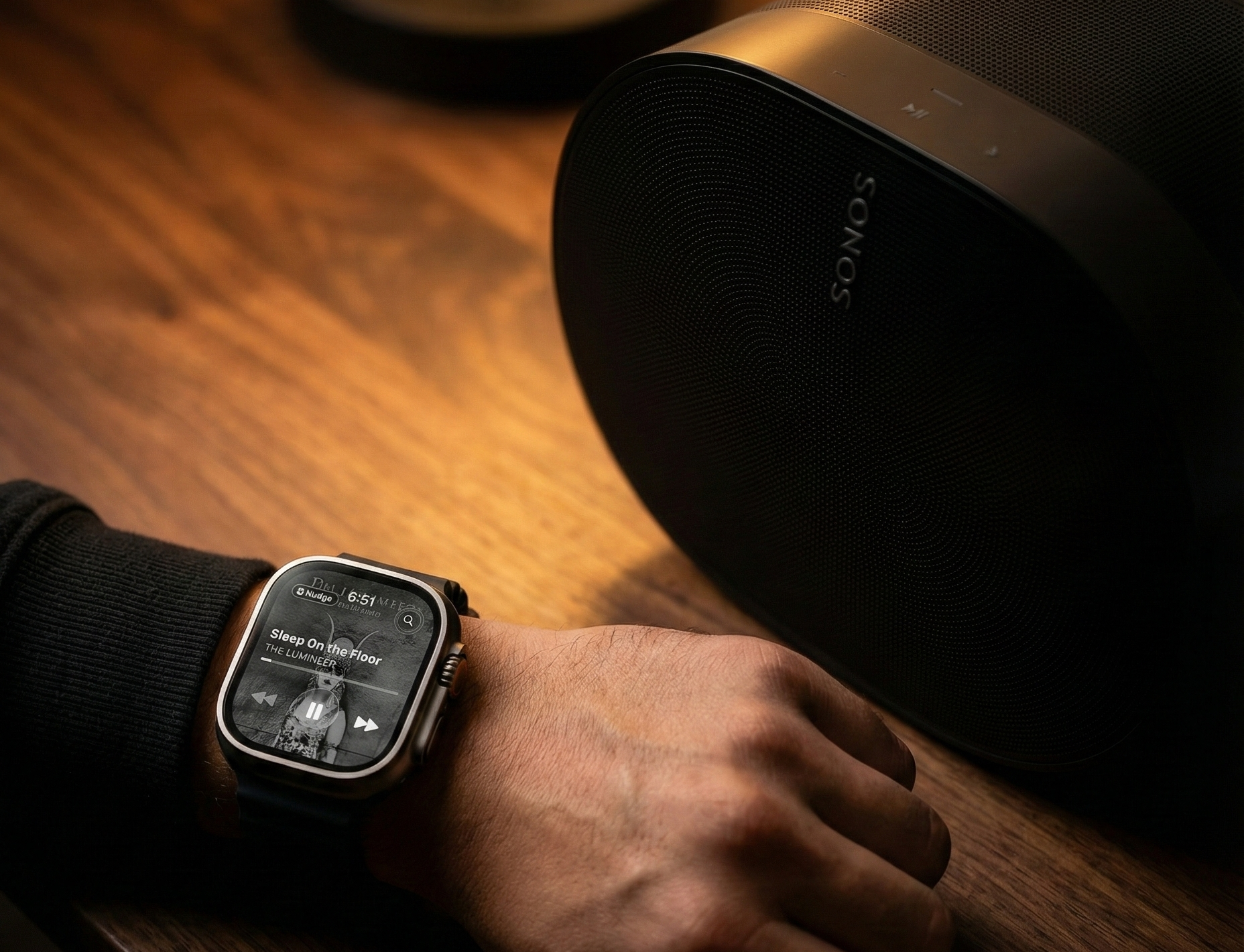
What it does: Nudge is a Sonos controller built natively for Apple Watch and iPhone, designed device by device rather than ported between them. It covers the controls you reach for during a listening session: volume, transport, speaker switching, Favorites, and search.
On the Watch, the Digital Crown is the volume knob, with a haptic click on every tick and 1% steps. On iPhone, album art fills the screen, the controls live on the Lock Screen and in the Dynamic Island, and your hardware volume buttons move Sonos volume instead of ringer volume.
How it connects: Nudge talks to your speakers over your local Wi-Fi network for real-time playback control, so volume changes and skips happen at local-network speed. Browsing your Sonos Favorites and playlists uses the Sonos Cloud API and needs a one-time Sonos sign-in, and a lightweight background service keeps your Watch and iPhone in sync. Your listening activity never reaches Nudge's servers. Full breakdown on the privacy page.
Where it sits against the other four:
- The Watch is already on your wrist. Nothing extra to buy, locate, or charge.
- No phone unlock for routine control. Volume, skip, Favorites, room switching: a wrist raise and a Crown turn.
- It controls whatever is already playing, from any source, which is the one thing AirPlay cannot do.
- Voice search covers the services connected to your Sonos. Speak the artist, album, or song and send it to the speakers.
- Everyone in the home gets the complete app, free. Apple Family Sharing covers up to six family members, and you can hand DJ access to as many guests as you like. No paywalled guest tier, which is where most third-party Sonos controllers stop.
Works with: Both S1 and S2 systems. If your speaker works with a Sonos app, it works with Nudge. Setup takes about two minutes, walked through step by step in How to Control Sonos from Apple Watch.
Pricing: $14.99 a year with a 7-day free trial, and one subscription covers the household. Details on the pricing page.
Verdict: Built for the moment the other four fall short, which happens to be the most common moment there is. It will not set up your speakers or tune your room. It is a volume knob you are already wearing.
Comparison: which way to control Sonos without the app
| Sonos App | AirPlay | Voice | Remote | Nudge | |
|---|---|---|---|---|---|
| Phone in hand | Yes | No | No | No | No |
| Volume precision | High | Low | Low | High | High |
| Browse / Search | ✓ | — | ~ | — | ✓ |
| Speaker groups | ✓ | — | ~ | — | ✓ |
| Existing playback | ✓ | — | ~ | ✓ | ✓ |
| Always on you | — | ~ | ~ | — | ✓ |
| Setup | Required | Minimal | Moderate | Minimal | Minimal |
✓ = Yes ~ = Limited — = No
The right tool for the job
Setting up a new speaker, running TruePlay, adjusting EQ, configuring your streaming services: that is the Sonos app, and it is good at all of it. Keep it.
The narrower question this comparison answers is what to reach for once the music is already playing and you just want it quieter.
AirPlay works if you started the audio yourself from a Watch-native app. Voice works if the room is quiet and the command is simple. A physical remote works if you never leave the room it sits in. The Sonos app works if your phone is already in your hand.
Most of the time, none of those are true. That gap is what Nudge was built for.
If you own a Sonos system and an iPhone, with or without an Apple Watch, the 7-day trial is enough to find out whether it fits how you actually listen. Download Nudge on the App Store.