
How to Control Sonos from Apple Watch
Sonos has never released an official Apple Watch app. Here's what actually works, and how to set up full control in about two minutes.
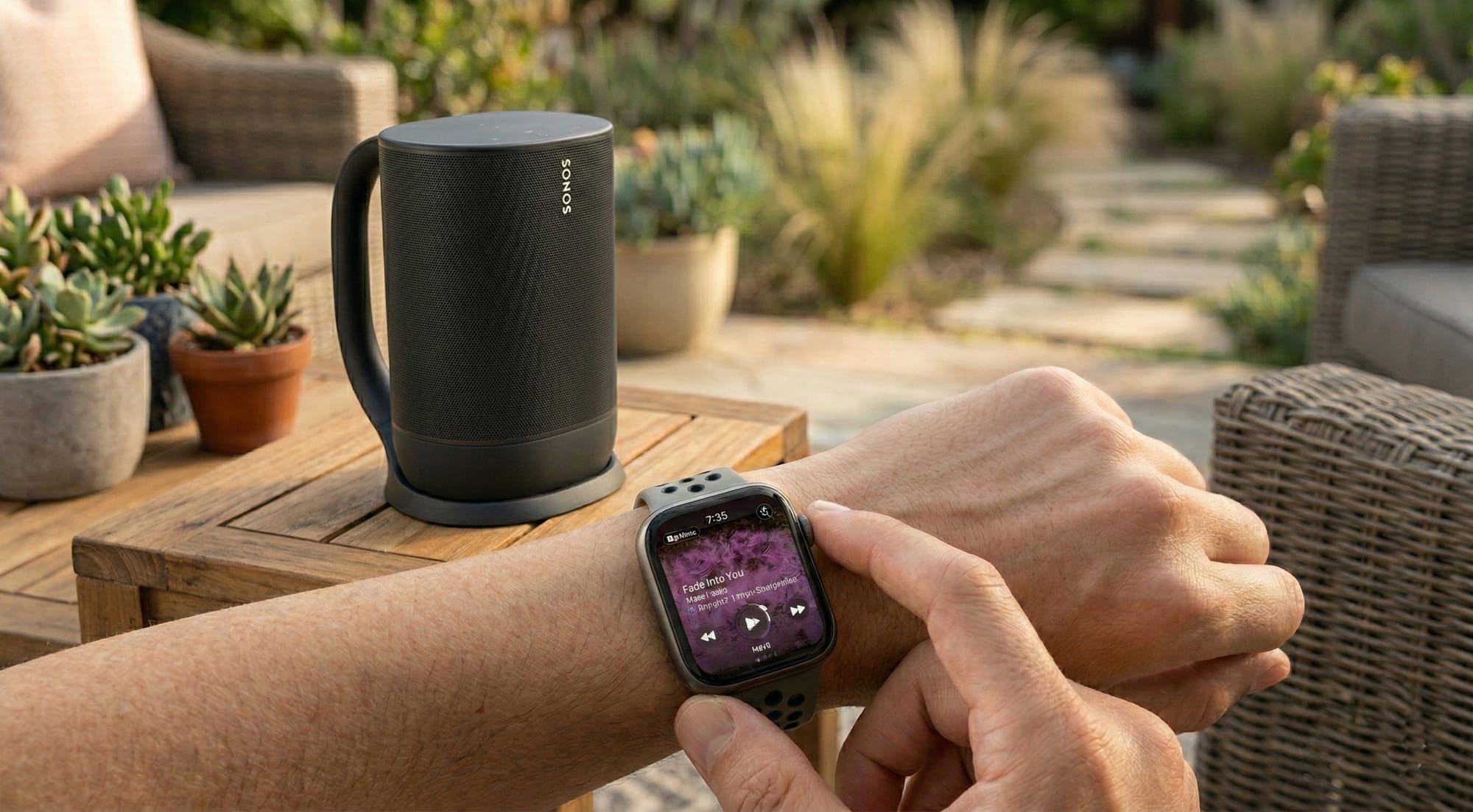
Sonos has never shipped an Apple Watch app, and has never announced plans to. AirPlay from the Watch can start new audio on a Sonos speaker, but it cannot touch music that is already playing, and it cannot reach your Favorites or your speaker groups. For full control from your wrist you need a third-party controller.
This guide covers setting one up with Nudge, what you can do once it is running, and how the connection works underneath.
What you need to control Sonos from Apple Watch
- iPhone on iOS 18.6 or later with Nudge installed
- Apple Watch Series 6 or later running watchOS 11.6 or newer
- Sonos speakers on your home Wi-Fi. S1 and S2 systems both work
No hub, no bridge, no extra hardware.
Setting up Sonos control on your Apple Watch
1. Download Nudge
Install Nudge from the App Store. The Apple Watch app installs automatically alongside the iPhone app, so there is no separate download.
2. Launch it on your Watch
Open Nudge on Apple Watch. It scans your local network and finds your Sonos speakers within a few seconds.
3. Start the free trial
Nudge includes a 7-day free trial, so you can test everything before committing. After that it is $14.99 a year, and one subscription covers the household: Apple Family Sharing brings the full app to up to six family members, and you can grant DJ access to as many guests as you like. Details on the pricing page.
What you can control from your wrist
Volume with the Digital Crown
Turn the Crown to move the volume in 1% steps, with a haptic click on every tick. You feel each adjustment, so you do not have to look at the screen to know what you changed. This is the feature people keep the app for.
Play, pause, and skip
Transport controls are one tap away. Play, pause, skip forward, or jump back, without pulling out your phone.
Browse Sonos Favorites and playlists
Your Sonos Favorites, playlists, and radio stations appear directly in Nudge. Tap one to start it on the selected speaker or room.
Search by voice
Nudge is dictation-first: speak the artist, album, or song and it searches the services connected to your Sonos, then queues the result. Faster than typing on a screen the size of a stamp.
Switch between speakers and rooms
Moving from the kitchen to the living room? Switch the active speaker or room in a few taps and the music follows you.
Group and ungroup speakers
Whole-home audio for a party, or split rooms back to independent playback, both directly from the Watch.
Hand the music to someone else
Tap to invite a guest as a DJ. A notification lands on their device, they accept, and they have control. It works the other way too: a guest can request access from inside Nudge and you approve straight from the notification. What they get is the complete app, free, not a stripped-down guest tier. That is the part most third-party Sonos controllers charge for.
Sonos control on iPhone
The Watch is the reason most people install Nudge, but the iPhone app is a full controller in its own right, and the two were designed device by device rather than ported between them.
On iPhone, album art fills the screen and the background tints to match it. Swipe down for every room, every Favorite, every speaker. A mini-player follows you between tabs. The controls live on the Lock Screen and in the Dynamic Island, and your hardware volume buttons move Sonos volume instead of ringer volume. More on the iPhone app and the Watch app.
How Nudge connects to your Sonos system
Nudge talks to your Sonos speakers over your local Wi-Fi network for real-time playback control, which is why a Crown turn and a volume change feel simultaneous.
Your iPhone runs the Nudge companion quietly in the background. It handles discovery, finding the speakers on your network, and hands that address book to the Watch, which then sends commands to the speakers itself.
Browsing Sonos Favorites and playlists uses the Sonos Cloud API and needs a one-time Sonos account sign-in. That step is optional: volume and playback control work without it. A lightweight background service handles push notifications so your Watch and iPhone stay in sync. Your listening activity never reaches Nudge's servers, which is covered in full on the privacy page.
Which Sonos speakers work (S1 and S2)
Nudge works with both. If your speaker pairs with a Sonos app, it pairs with Nudge, and mixed households running an S1 system in one room and S2 in another are covered too. Older Play:1, Play:3 and Play:5 units on S1 behave the same as a current Era or Move on S2.
Is there an official Sonos Apple Watch app?
No. Sonos has never shipped one and has never announced plans to. Every route to wrist control runs through a third-party app, which is why this guide exists.
Why a dedicated Apple Watch app beats the workarounds
The usual routes to Sonos-on-your-wrist are workarounds: Siri shortcuts that take a beat too long, complications that only move volume, automations that break on the next update.
Nudge was designed with the Watch as a primary screen rather than a secondary one. The Crown handles volume because that is what a dial is for. Tap targets are sized for a wrist. Search is voice-first because typing is not a thing you do on a watch. The result is a control surface that behaves the way the hardware wants to behave.
For a wider comparison, including AirPlay, voice assistants, and physical remotes, see How to Use Sonos Without the App: What Actually Works.
Try it free
Nudge is on the App Store with a 7-day free trial, all features included. Test the Crown, browse your Favorites, try voice search, group a few speakers, and see whether it fits how you listen.